Switch companies and launch your apps
The companies page is your front door. Every business you have access to is listed here, with a Launch button for each app it is subscribed to.
Open an app
Each subscribed company lists its apps as rows: E·BIZI Pay, E·BIZI Papers, or both. Choose Launch on the row you want.
Next to the company name you also get Manage subscription, which is billing, and Manage, which edits the company's own details like its address and registration numbers. Two different things, sitting next to each other.
The app opens with that company already selected. You do not sign in again and you do not pick the company a second time.
Move between apps once you are in one
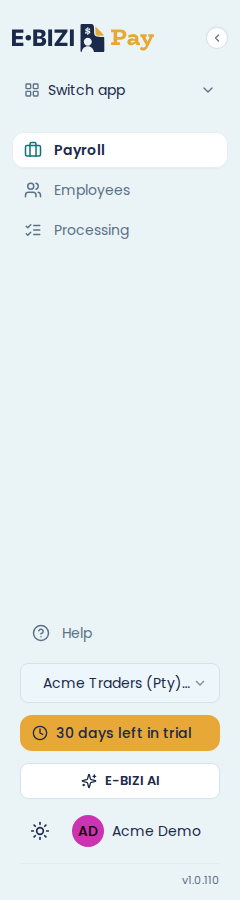
Every app has a Switch app control at the top of its sidebar. Use it to go from E·BIZI Pay to E·BIZI Papers without coming back to the companies page.
Switch between your companies
The sidebar shows which company you are working in. If you have more than one, that control switches between them.
Add another business
Choose Create company on the companies page.
Each company is separate: its own employees, its own payroll, its own documents, its own subscription. Nothing is shared between them except your login.
That means a second company means a second subscription. If you run three businesses, you are paying for three.
Being sure which company you are in
Before you close a payroll or send anything to SARS, check the company name in the sidebar. Two companies with similar names are easy to confuse, and a payroll run closed in the wrong one is tedious to unpick.
If a company has no Launch button
A company with no subscription does not show app rows at all. Instead it shows a price summary and a See plans button. Choose See plans to subscribe it. See subscribe and start your trial.
Once it is subscribed, a row appears for each app it has, with a Launch button on each.
If Launch takes you back to setup
E·BIZI Pay needs its bank account details before it will open. You are sent to Set up your apps to finish that off. See set up your apps.
E·BIZI Papers needs no setup, so it opens straight away.