A table of contents
A contents list belongs on anything long enough that somebody has to look for a clause: a multi-page quote, a contract, a policy. Papers builds it from your headings, so it stays right when you add a section.
Insert the list
Put the cursor where the contents belong, usually straight under the title, and choose Table of contents from the toolbar's insert group.
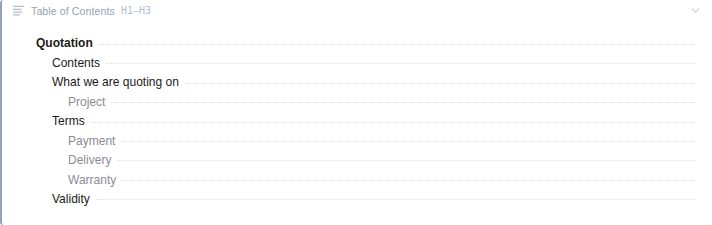
The block lands with your headings already in it, indented by level, with a dot leader after each one. Choose an entry and the editor jumps to that heading, which makes it a usable way to move around a long template.
A document with no headings yet shows "Add headings to your document to generate a table of contents" instead. The list fills in as you write.
Set how deep it goes
The badge on the block's header shows the current depth. Choose the header to open the depth options: H1-H2, H1-H3, H1-H4 and All headings. The default is H1-H3.
H1-H2 gives you the sections. H1-H3 gives you the sections and their sub-clauses, which is what most contracts want. Anything deeper usually produces a list nobody reads.
What the finished document shows
The rendered contents list is a bordered box headed Table of Contents, with one line per heading, indented by level. Each line links to its heading, so a reader of the PDF can jump straight there.
There are no page numbers, in the editor or in the PDF. The list is links, not "see page 4", which is worth knowing before you promise a client a numbered index.
A Word Document download is the exception. Its contents list has page numbers, which Word works out when you open the file, so let Word update the fields when it asks.
Do not add your own heading above it
The block prints its own Table of Contents heading. Write a Contents heading above it as well and you get both, and your heading is listed as the first entry in its own list.
Headings that come and go
The list is built after the data has been merged in, so it reflects the document the reader actually receives.
A heading inside a conditional section that did not appear is not listed. A heading inside a repeating section is listed once per row, which is right for "Schedule 1, Schedule 2" and wrong if you were expecting one entry.
Check it with test data
Preview the template and read the list against the document. It is the quickest way to find a paragraph you styled as a heading by accident: it will be sitting in the contents list where it does not belong. See preview with test data.