Preview with test data
A template full of variable chips tells you nothing about whether the document reads well. Test data is a sample of the real thing, saved against the template, so you can look at the finished document while you are still building it.
Open the Sample Data pane
Choose Sample Data from the top right of the editor (the database button).
The pane docks beside the document rather than covering it, and the document stays editable while it is open. That is deliberate: you want the data in front of you while you type variable paths.
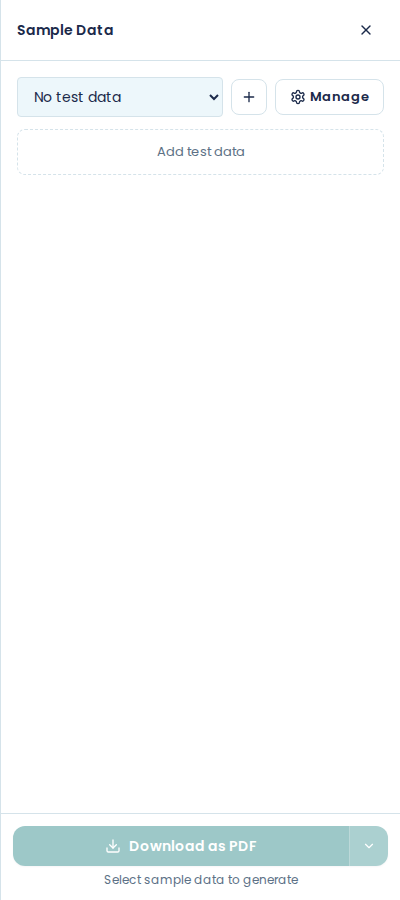
Add test data
Choose the + button beside the test data list (or Add test data, while the list is still empty). Add Test Data opens. Give the entry a Name, paste your sample into JSON Data, and choose Add. Use real-shaped data, from a real record if you have one, with the names and numbers changed.
The structure is what matters. If your data is going to arrive like this:
{
  "customer": { "name": "Kirstenbosch Garden Supplies" },
  "lines": [
    { "description": "Watering can", "quantity": 24, "total": 4536.00 }
  ]
}
then that is what your test data should look like, because those are the paths your variables have to match.
Save more than one set
Papers keeps a list of test data entries, and you switch between them from the dropdown at the top of the pane. The selected entry's JSON shows underneath, so you can read the paths off it while you work.
Manage opens Manage Test Data, where you edit an entry's name and its JSON, or delete it.
Keep at least two: an ordinary case and an awkward one. The awkward one is where the bugs are. A customer with no second address line, an invoice with one line, an invoice with forty, an employee whose middle name is missing.
See the document filled in
Switch views with the first button at the top right. It shows an eye in Document view and a code symbol in Construct view.
Document view fills in every variable and formula from the selected test data. This is the closest the screen gets to the reader's view.
Construct view shows each variable and formula as its raw expression. This is the builder's view.
Neither view works out repeating or conditional sections. Their content shows once, whatever the data says, so download the document to check them.
Download the finished document
The download button at the bottom of the Sample Data pane produces a real document from the selected test data. It reads Download as and the format, for example Download as PDF. The arrow beside it chooses the format:
- Word Document (.docx)
- HTML, a self-contained web page
- Plain Text (.txt)
- Markdown (.md)
Papers remembers the format you last used for that template, so the button reads the same next time.
The button is greyed out until you select test data, because without data there is nothing to fill the variables with.
Check the PDF, not the screen
The editor's page view is close, and the PDF is the truth. Download the PDF before you publish, and look at:
- where the pages break
- whether the header and footer repeat on page two
- whether your fonts came out right (see formatting and page layout)
A one-page test document does not exercise any of that. Use a set of test data big enough to run onto a second page.
What the preview does not use
The preview uses your working draft, not the published version. That is what you want while you are building, and it is worth remembering when a colleague sees something different: they are looking at the published version. See versions and publishing.