Find and organise templates
Templates lists everything you have. Once there are more than a screenful, the search box and the tags are how you get back to the one you want.
Search by name
The Search templates... box above the list filters as you type, and it matches the template name. Clear it with the small cross at its right.
Search is the fastest route when you know roughly what the template is called. Tags are for when you do not.
Tag your templates
Tags are your own labels: hr, sales, finance, whatever divides your work up. A template can
carry several.
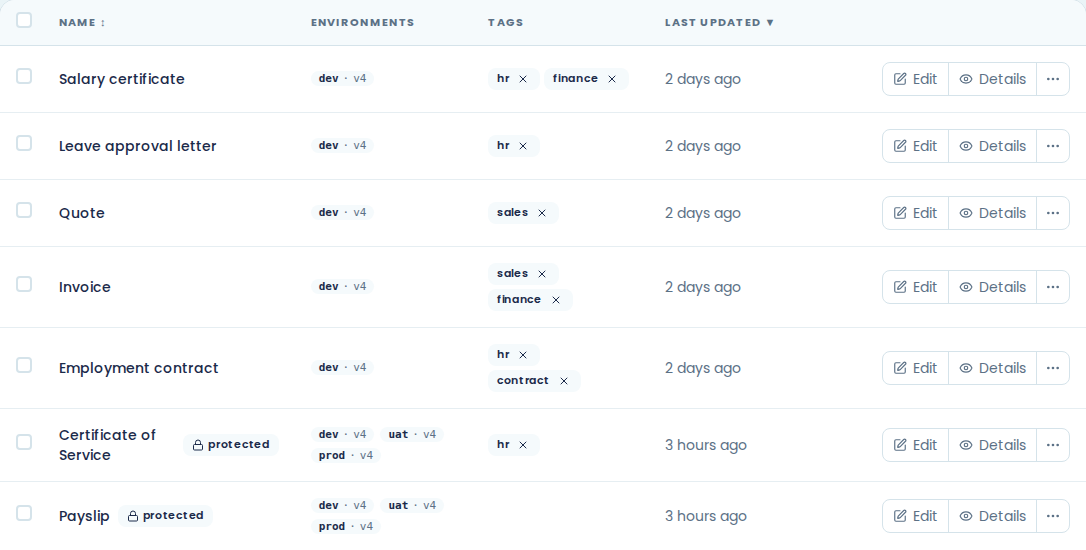
You set tags from the list. Choose Add tag from the row's menu, type the tag and press Enter. Tags show as chips in the TAGS column, each with a cross for taking it off again.
Pick a handful of tags and stick to them. Twenty tags used once each are worse than four used often.
Filter by tag
The Tags control above the list narrows it to the templates carrying the tags you pick. Combine it with the search box when a tag still leaves too many.
Sort the list
NAME and LAST UPDATED are sortable: choose the column heading to sort by it, and again to reverse it. The list opens sorted by LAST UPDATED, newest first, which is usually the one you want.
Rows at the top right switches between 10, 25 and 50 per page.
Read the row without opening it
Each row carries the two things you usually want to know.
ENVIRONMENTS shows where the template is published and which version is live there, as
badges like dev · v4. A template that shows Unpublished has no published version in any
environment, which is why it will not appear in the signing wizard or in Mail merge. See
environments and promotion.
LAST UPDATED is when the draft last changed, not when it was last published. A template that says "2 days ago" may still be publishing a version from March.
Edit opens the editor. Details opens the template's own page, with its slug, locale, tags and environments.
Rename or tag from the list
The row's menu button holds Rename and Add tag, so you can tidy the list without opening anything. Rename turns the name into a box you type over.
Archive one you have finished with
The same menu holds Archive, and the template's own page has an Archive button. Either way it disappears from the list.
Show archived above the list brings the archived ones back into view.
Archiving cannot be reversed. There is no way to bring an archived template back into the working list, so read the name twice before you confirm.
Archive several at once
Tick the rows you want and use Archive selected in the bar that appears. The same warning applies, several times over: nothing here comes back.
Templates you cannot archive
Two templates carry a Protected badge: Payslip and Certificate of Service. They belong to E·BIZI Pay, which produces documents from them, and Papers keeps them up to date for you.
You can open one and read it. You cannot archive it, and any change you make to the draft is replaced the next time E·BIZI updates that template. Treat them as read-only.