Placeholders for your data
A variable is a marker in your document that Papers replaces with a real value. The editor calls it a variable, and you will hear the same thing called a placeholder or a merge field elsewhere. It is the same idea.
Insert a variable
Put your cursor where the value belongs and choose Insert variable from the toolbar (the { }
button).
In Field expression, type the path to the value in your data, using dots between the levels:
customer.name
invoice.number
employee.address.city
Choose Insert. A chip appears in the text.
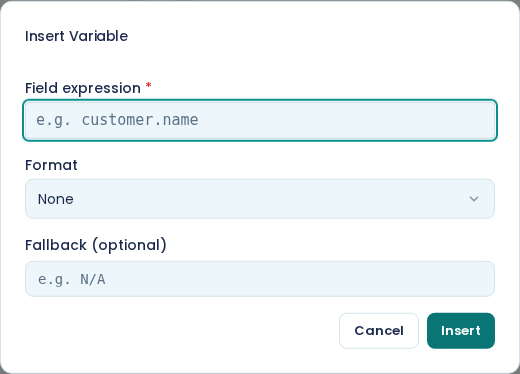
Work out what to type in Field expression
The path has to match your data. If your data looks like this:
{
  "customer": { "name": "Kirstenbosch Garden Supplies", "contact": "Riaan Fourie" },
  "invoice": { "number": "INV-2026-0184" }
}
then customer.name and invoice.number are right, and customerName is not.
Add your test data in the Sample Data pane first and select it. Field expression then suggests the fields it can see in that data as you type, which saves you typing and saves you typos.
Format a value
Raw data rarely reads well. 18500 is not R18,500.00, and 2026-09-14 is not
Monday, 14 September 2026. Format in the dialog fixes that:
- Currency for money
- Date (short) and Date (long) for dates
- Number for a plain number with thousands separators
- Percentage for a proportion
Leave it on None if the value is already in the form you want.
Currency and locale default to the template's own settings, which you set under Page Setup. For a South African template that means rands and en-ZA, so you do not have to set it per variable.
Handle a value that might be missing
Fallback (optional) is what Papers prints when the data has no value for that path. Type something short: "N/A", a dash, or nothing at all if a blank is better.
Without a fallback, a missing value prints as nothing in the finished document. That is fine in a sentence you have written around it and bad in a table, where you end up with an empty cell and no idea whether the data was missing or the template was wrong.
Change a variable you have already inserted
Click the chip. Edit Variable opens on its current settings, so you can change the Field expression, the Format or the Fallback, then choose Update. Delete removes the variable from the document.
Use a variable inside a repeating section
Inside a repeating section the variable refers to the current item rather than to the whole document, so the path starts with the item alias:
line.description
line.unitPrice
The dialog knows this. When your cursor is inside a repeating section it says so at the top, and suggests that item's fields. See repeating sections.
Check your work
Switch to Document view with the first button at the top right. Every variable that finds a value in your test data shows that value. A path you got wrong shows your fallback if it has one, and otherwise stays a chip showing the variable's name rather than a value.
Do this before you publish. A wrong path is invisible in Construct view, which shows every variable as its raw expression whether the path is right or not.