A tour of the editor
The editor fills the whole window: a page in the middle, a toolbar across the top, and small floating groups of buttons in the corners. This is the map. The articles it links to are the detail.
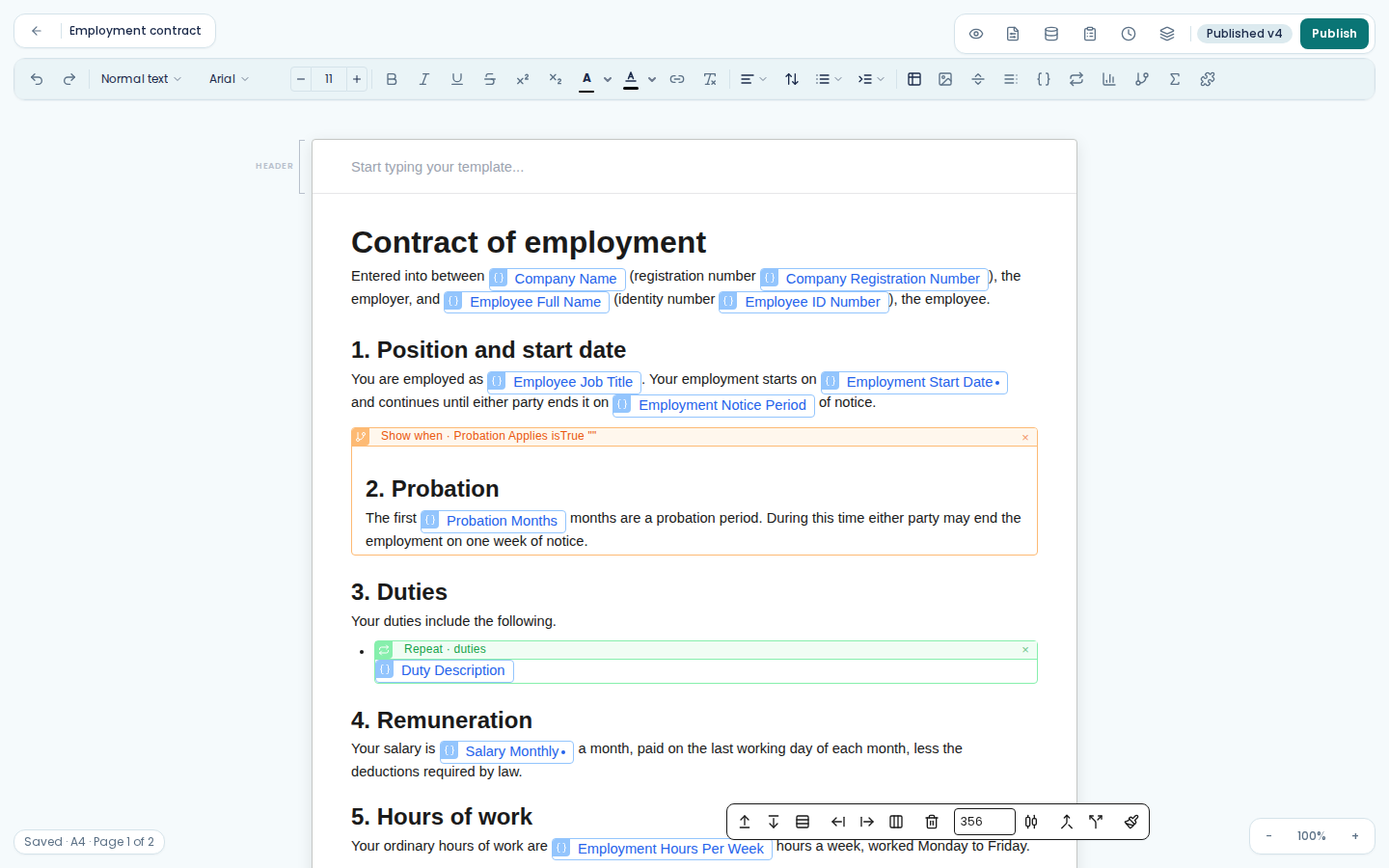
The corners
Top left is Back to templates and the template name. Click the name to rename it.
Top right holds the tools, then Publish. From left to right: the view toggle, Page Setup, Sample Data, Form, Version history, Environments. A template you imported from a Word document also has Import report at the end of that row.
Bottom left is the status bar. It shows whether your work is saved, the page size, and which
page your cursor is on out of how many, for example Saved · A4 · Page 1 of 2.
Bottom right is the zoom control. Ctrl+= and Ctrl+- also work, and Ctrl+0 resets it.
The toolbar
The toolbar is grouped, and the groups are separated by thin dividers.

Undo and redo come first. Then the text identity group: the style dropdown, the font, and the size. Then inline formatting: bold, italic, underline, strikethrough, superscript and subscript, text colour, highlight, link, and clear formatting. Then paragraph formatting: alignment, line spacing, Lists and blocks, and indent.
The last group is Insert, and it is the one that makes Papers different from a word processor. See below.
The toolbar follows your cursor. When you click into a header or footer region it acts on that region instead of the body, and the inserts that only make sense in the body disappear from it.
What you can insert
Insert table opens a small grid: drag across it to choose how many rows and columns. See tables.
Insert image opens a dialog with your asset library, an option for an image chosen by your data, and an upload tab. See images and logos.
Page break forces what follows onto a new page.
Table of contents inserts a contents list built from the headings in the document.
Insert variable puts a value from your data into the text. This is the one you will use most. See placeholders for your data.
Insert repeating section repeats a block, a table row or a list item once per item in your data. See repeating sections.
Insert visualisation (Ctrl+Shift+D) turns a grid of values in your data into a table.
Repeat selected text repeats a run of words inside a sentence, once per item. Select the words first, within one paragraph: the button stays greyed out until you do.
Insert conditional section wraps content that only appears when a condition is met, like a probation clause that is left out for a fixed-term contract.
Condition on selected text does the same for a few words inside a sentence. Select them first, within one paragraph.
Insert formula (Ctrl+Shift+F) puts a calculated value into the text: a line total, a sum of a column. See formulas and calculations.
Insert fragment drops in a block of shared content. See below.
The two views
The first button at the top right switches between Document view and Construct view. It shows an eye in Document view and a code symbol in Construct view.
Document view fills in your variables and formulas from the selected test data, so you see the
values the reader sees. Construct view shows each one as its raw expression, for example
{{ customer.name }}, so you can see the machinery.
Repeating and conditional sections are not worked out on screen in either view. Their content always shows, once, marked as a repeat or a condition. Download the document to see them play out. See preview with test data.
Neither view changes the document. They change what you are looking at.
Reusable content
A fragment is a block of content stored once and used in several templates. Your banking details are the obvious case: put them in a fragment, drop that fragment into every template that needs them, and change them in one place.
Insert fragment puts a reference to the fragment in the document, not a copy of it. Edit the fragment and every template that references it changes too, published versions included. That is what makes it useful, and it is also the thing to be careful about. See versions and publishing.
Fragments are managed under Fragments in the sidebar.
Finding and replacing
Ctrl+F opens find. Ctrl+H opens find and replace. Both work on the document body.
Keyboard shortcuts
Ctrl+/ opens the list of keyboard shortcuts.
Sample data and the Form panel
Sample Data is the pane where you keep a sample of the real data, and where you download the finished document. See preview with test data.
Form shows the fields your template exposes when somebody fills it in by hand, for example when sending it for signature. Papers works those out from the variables you have used, and the Form panel is where you set each field up.
Every field has a Required tick box and a Label, the name the person filling it in sees. Help text adds a line of guidance. Input type decides what kind of answer the field takes, such as Text, Number, Date or Email. Section groups related fields together. Placeholder, Format and Default value cover the rest.
Choose Enum as the input type and an Options (one per line) box appears, where you list the choices. The preview at the bottom of the panel shows the form as it will look.
Check what came across from Word
Import report lists what was changed or simplified when the Word document was imported. Work through it after an import so you know which parts of the template to check.