Track signatures and send reminders
Signing lists every request you have sent and what state it is in. This is where you chase the ones that have gone quiet and collect the finished PDF from the ones that have not.
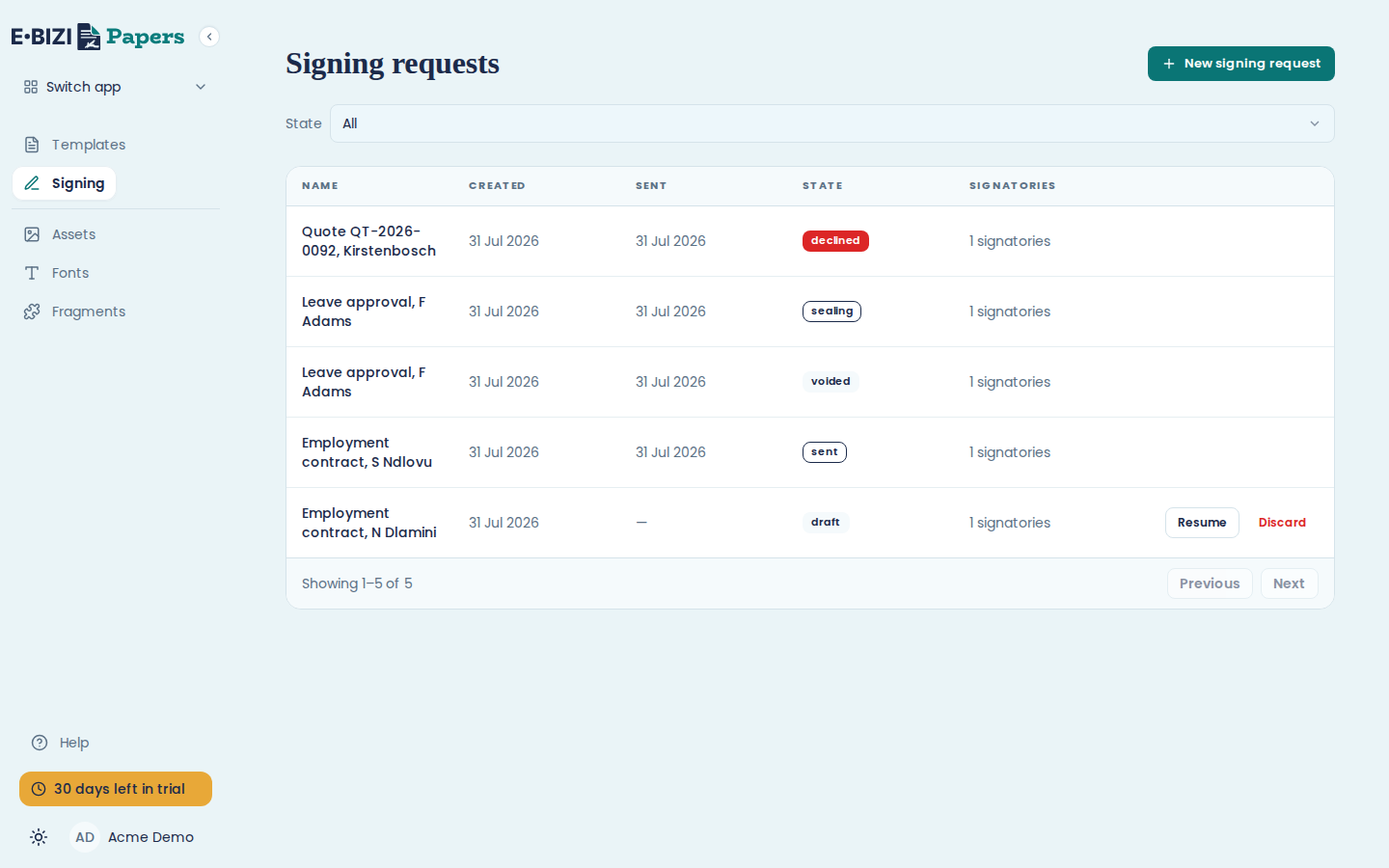
What the states mean
Draft has not been sent. Nobody has seen it and you can still change anything.
Sent is out with the signers and waiting. This is where a request sits for most of its life.
Sealing means everyone has signed and Papers is producing the final sealed PDF. Nothing is needed from you while it is in this state.
Completed is done. The sealed PDF is ready to download.
Declined means a signer refused, with a reason.
Expired means the links ran out before everyone signed.
Voided means you cancelled it.
Use the state filter above the list to show one state at a time. Filtering to Sent gives you your chase list.
Find out who has not signed
Open the request. Each signatory is listed with their own state:
Pending has not opened it yet. Viewed has opened the document but not signed. Signed is done. Declined has refused.
That distinction is the useful part. Pending after three days usually means the email did not arrive. Viewed but not signed usually means they have a question.
Send a reminder
Open the request and choose Resend invitation on the row of the signer you want to nudge. It shows for anybody still Pending or Viewed on a Sent request. They get a fresh email with a new link, and the link in their earlier email stops working.
If reminders were switched on when you sent the request, Papers is already nudging them on the days you chose, and a manual resend is for when you want to do it now. Each automatic reminder also carries a new link and retires the old one.
Read the audit trail
Open the request and look at the Audit timeline. It records what happened, who did it and when: the request being created and sent, each email going out (Email dispatched), viewed, consent accepted, each field filled, signed, reminders, declined, sealed and completed. A signer who used Smile and Sign also gets a Selfie captured entry.
This is the record you produce when somebody disputes whether they signed. Download audit JSON on the request gives you the same trail as a file, with the detail behind each entry, such as the reason a signer gave for declining.
Get the signed document
On a Completed request, choose Download signed PDF. That is the sealed copy, with every signature in it, and it is the one to keep.
When a request completes, Papers also emails every signer a link to download the sealed PDF, and attaches the PDF as well when it is small enough.
Cancel a request, or handle a refusal
Void request cancels a request you should not have sent, and a signer who refuses moves it to Declined. Both are covered in void a request or handle a decline.