Formulas and calculations
A formula works a number out in the document instead of asking for it. Line totals, an invoice total, a gross that is basic plus allowances: your data supplies the parts and Papers does the arithmetic.
Insert a formula
Put the cursor where the number belongs and choose Insert formula from the toolbar, or press Ctrl+Shift+F.
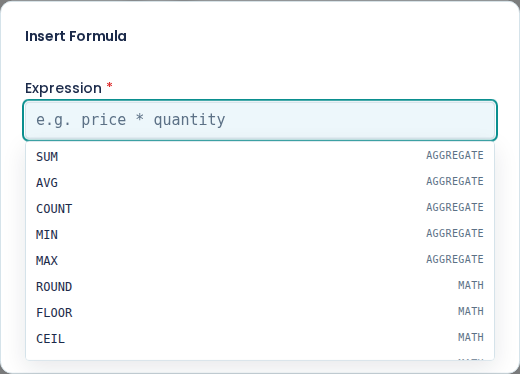
The Insert Formula dialog wants an Expression, and it offers a Format and a Fallback (optional). Choose Insert and the formula sits in the document as a chip, like a variable does.
Write the expression
An expression is arithmetic over the fields in your data, written the same way a variable path is:
earnings.basic + earnings.allowances
Add, subtract, multiply and divide with +, -, * and /, and group with brackets. So a
15 per cent VAT line is invoice.subtotal * 0.15.
You do not have to remember the functions. Click into Expression and a list of suggestions drops down, each tagged AGGREGATE or MATH, and it narrows as you type. The same list offers the fields in your test data.
ROUND, FLOOR, CEIL and ABS do what their names say, and take a number:
ROUND(invoice.total). ROUND also takes a number of decimal places, so
ROUND(invoice.subtotal * 0.15, 2) rounds to the cent.
Total up a list
SUM, AVG, COUNT, MIN and MAX work across a list in your data. Name the list,
then [], then the one field to add up:
SUM(lines[].total)
An aggregate takes a single field after [], so it cannot multiply two of them.
SUM(lines[].quantity * lines[].unitPrice) is not a formula Papers can work out.
The way round it is to do the multiplying per row and add up the result. Either have your data
carry a total on each line, which is what the seeded Invoice does, or work out the row total in
the row and sum a field the data already has.
Total only some of the items
Add WHERE and a condition after the field, and the aggregate only counts the items that match:
SUM(lines[].total WHERE taxable == true)
COUNT(lines[] WHERE quantity > 10)
Inside the condition, name the item's fields on their own (taxable, not lines[].taxable).
Compare and combine values
Conditions use these operators:
==equal and!=not equal>,<,>=and<=for bigger and smaller&&for and,||for or, and!for not
So WHERE quantity > 10 && taxable == true counts only the large taxable lines. Put text in double
quotes: WHERE category == "Delivery".
Calculate inside a repeating row
A formula inside a repeating section can use that row's alias, so the Amount column of an invoice is:
line.quantity * line.unitPrice
Papers evaluates it once per row, against that row's data. The seeded Invoice template uses exactly
this: 24 at R189.00 renders as R4,536.00 on the line, and SUM(lines[].total) adds up the four
lines to put R13,310.00 at the foot of the table.
Watch the result as you type
Once you have test data selected in the Sample Data pane, the dialog shows = and what the
formula works out to under the expression box. A red line there instead means the expression
cannot be parsed, or it found no value, which usually means a field does not exist.
That line is the cheapest check you get. Fix a red one before you insert it.
Format the answer
Format decides how the number is printed: None, Currency, Number, Number (2 decimals) or Percentage.
Currency is the one you will use most. It prints 8490 as R8,490.00, and a Currency
selector appears below it so you can override the template's own currency for that one figure.
Leave the format as None for a plain count or a quantity.
Set a fallback
Fallback (optional) is what prints when the formula cannot be worked out, usually because the
data is missing a field. 0 is the sensible fallback for a total.
Without a fallback, a formula that cannot be evaluated prints nothing, which on an invoice total is worse than a zero. Set one.
Check the arithmetic with test data
Preview the template with test data and add up the column yourself once. In the finished document, a formula referring to a field that does not exist is not an error: it prints your fallback, or nothing. So the only way to know it is right is to look at the number. See preview with test data.