The asset library
Assets are the images your templates use: your logo, a scanned signature, a product photo. They live in one place so that every template draws on the same file, and changing the logo means changing it once.
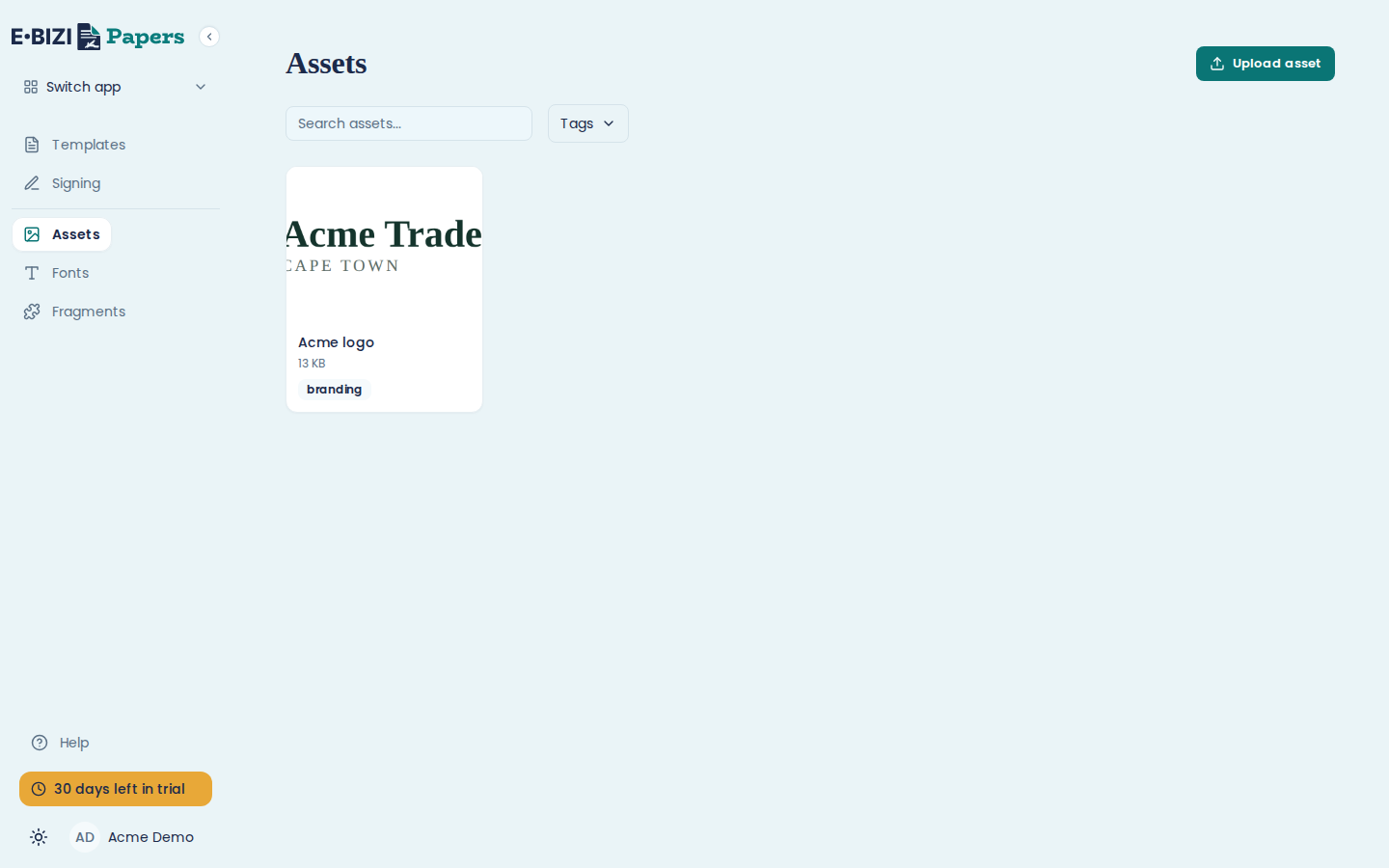
Upload an asset
From Assets, choose Upload asset and pick the file. Give it a name you will recognise later ("Acme logo", not "logo-final-v3-USE-THIS").
PNG, JPEG, GIF, SVG and WebP are accepted, up to 10 MB each.
You can also upload from inside the editor, on the Upload tab of the Insert image dialog. It goes to the same library either way. See images and logos.
Find an asset
The search box above the list matches on the name. Tags narrow it further, and tagging is worth doing once you are past a handful of files: Branding, Signatures, Products.
Rename or retag an asset
Open the asset and change its name or tags. Renaming is safe: templates reference the asset itself, not its name, so nothing breaks.
Replace a logo everywhere at once
This is the reason to keep images in the library rather than pasting them into each template. Upload the new version, then point the templates at it.
Delete an asset
Delete it from the asset list. Papers refuses if the asset is used in one or more templates, and says so rather than leaving you with a template full of broken images.
To delete one that is in use, take it out of the templates first. The message tells you the asset is in use, so if you cannot remember where, check the templates you would expect to find it in.
Get the size right before you upload
Papers scales an image to fit the page, and it cannot invent detail that is not there. A logo exported at 600 pixels wide looks soft when it is printed. Export it larger than you need and let Papers scale it down.
Going the other way is also worth avoiding: a 10 MB photograph in a template makes every document produced from it slow and enormous.
Uploading your own fonts
Fonts are a separate library, under Fonts in the sidebar. Upload a font family there and it appears at the top of the editor's font dropdown under Your fonts.
The reason to bother is in formatting and page layout: an uploaded font is embedded in the PDF, so it renders identically everywhere. Most of the standard fonts are not.
Papers will not let you delete a font family that a template is using, the same as with an asset.