Versions and publishing
Papers keeps your working draft and your published version apart. You edit the draft; the documents your business sends out come from the published version. That separation is what lets you redesign an invoice on a Tuesday afternoon without changing the invoices going out that afternoon.
How saving works
There is no save button. The editor saves your draft as you type, and the status at the bottom left tells you where it stands.
That saved draft is not live. It is yours until you publish it.
Publish a version
Choose Publish at the top right of the editor. Add a Change note (optional) describing what you changed, then publish.
The note is optional and you should write one anyway. Version history is a list of numbers without it, and the person reading it later is usually you.
Once published, a pill next to the button shows the latest published version number, and a message confirms the number the new version got.
See the version history
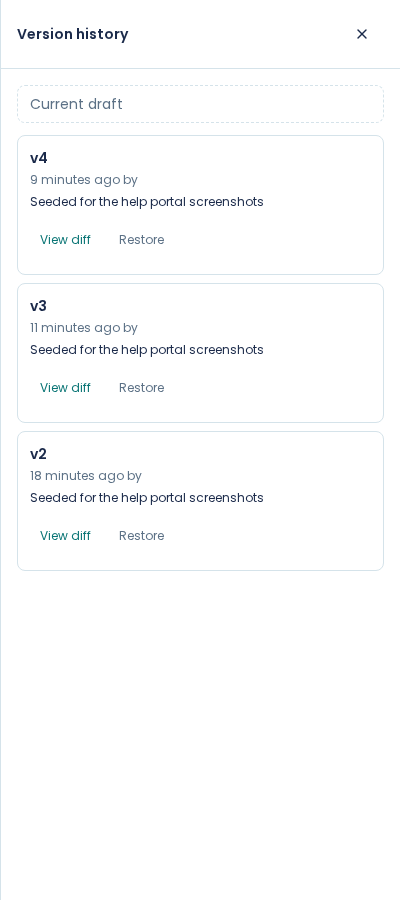
Open Version history from the top right (the clock button). It lists every published version, newest first, with its number, its change note, and who published it.
Above them sits a Current draft entry. That is your working copy, the thing nobody else can see yet, and it is always there: a template always has a draft, whether or not you have changed anything since the last publish.
Go back to an earlier version
Open the version you want from Version history and restore it. That brings its content back into your draft, where you can look at it before you publish.
Restoring does not delete anything. The version you were on stays in the history, and you publish again to make the restored content live.
Compare two versions
From Version history you can view a version and see what changed against another. Use this before restoring, so you know what you are about to bring back.
Which version gets used
These always use a published version:
- a document sent for signature (the signing wizard only lists published templates)
- letters made with Mail merge
A document produced by your own system through the API, or by an AI assistant, uses the published version too, unless whoever is asking requests the draft on purpose.
In the app, your draft is used in one place only: the editor's own preview and download. So if a colleague says the invoice still has last month's wording, the question is whether you published.
What publishing does and does not freeze
Publishing freezes the document's content and the fonts it uses. A published version keeps the exact font files it was published with, so a later font change cannot alter an invoice you sent in March.
Publishing does not freeze the content of a fragment. If a region of your template adopts a fragment, publishing records which fragment it points at, not what that fragment said at the time. Edit the fragment later and every template that adopted it changes, including versions you published months ago.
That is how fragments are designed to work, and it is useful: change your banking details in one place and every document that shows them is correct. It is worth knowing before you put something in a fragment that must never change retrospectively.
Environments
A template can be promoted through environments (DEV, UAT, PROD) so you can test a change before it reaches the documents your customers get. Open Environments from the top right of the editor, or see the badges in the Templates list.
If you are not integrating Papers with your own systems, you can ignore this. The published version is the one that matters.