Headers and footers
A header or a footer repeats on every page: your company name across the top, a page number along the bottom. You edit them in place, in the margin band above and below the page, rather than in a separate screen.
Turn them on
Open Page Setup from the top right of the editor and find Header & Footer. Switch on Show header, Show footer, or both, then choose Apply.
A band appears in the top and bottom margin of the page. That band is the header or footer, and it is editable where it sits.
Write in a header or footer
Click into the band and type. The toolbar above follows your cursor: it now acts on that region rather than on the body.
The formatting you get is the everyday kind: text, bold and italic, alignment, a table, a list. You can also insert an image and a variable. What you do not get in a region is the structural inserts: page breaks, a table of contents, repeating sections (including Repeat selected text), conditional sections (including Condition on selected text), visualisations, formulas and fragments. Those belong to the body, and the toolbar hides them rather than letting you insert something that cannot work there.
Click back into the body to leave the region.
Insert a page number or a date
With your cursor in a header or footer, the insert group offers Insert field, which gives you five things:
- Page number
- Page X of Y, which inserts the whole phrase in one go
- Total pages
- Current date
- Document title
Page X of Y is the one most documents want, and inserting it as a unit saves you assembling it out of the other two.
These are live values, worked out when the document is produced. The page number is genuinely per page: page three says 3, not the number you happened to be looking at while you edited.
Set where the page number goes and how it counts
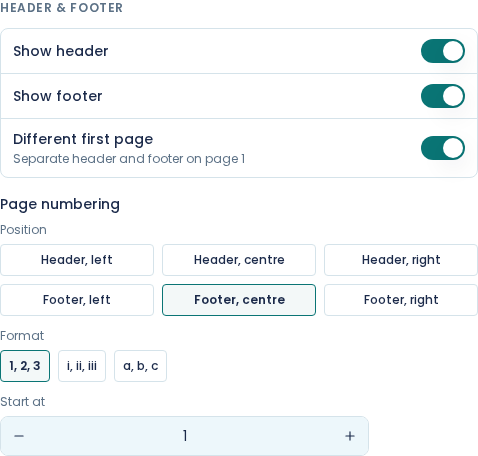
Also under Header & Footer in Page Setup:
Position puts the number in one of six places: header left, centre or right, or footer left, centre or right.
Format sets the numbering style: 1, 2, 3, i, ii, iii or a, b, c.
Start at sets the first page's number. Set it to something other than 1 when your document is a continuation of another one.
Give the first page a different header
Switch on Different first page (described in the dialog as "Separate header and footer on page 1").
You then get a separate header and footer for page one, edited the same way. Leave them empty for the cleanest result: a contract whose first page carries the title block and whose later pages carry a running header is the usual shape, and an empty first-page header is how you get it.
Put a banner image behind the header
An image can sit behind the header's text as a banner: a coloured band, a pattern, or a strip of artwork with your company name typed over it.
- Click into the header and choose Insert image. See images and logos.
- Click the image. A small image toolbar appears.
- Choose Behind content, fills its area. The image moves behind the text and fills the header.
- Choose how it fills the space (Cover, Contain or Stretch), and lower the opacity if the text is hard to read over it.
- To take the banner all the way to the edge of the paper, turn on Bleed to the paper edge.
The same works in a footer. A logo you want in line with the text needs none of this: insert it and leave it In line with text.
Reuse the same letterhead across templates
Write the header once, then hover over it (or click into it) and choose Save as fragment from the small buttons that appear above it. In your other templates, do the same and choose Use fragment to pick it. Change it in one place and every template that uses it follows.
A header that uses a fragment shows "Linked to" and the fragment's name above it. Detach breaks the link and leaves a copy of the content in this template, which you can then change on its own. Footers work the same way, with the buttons below the footer.
The catch is worth stating plainly: publishing a template records which fragment a region points at, not what the fragment said at the time. Edit the letterhead later and documents from already-published versions change too. That is the design, and mostly it is what you want. See versions and publishing.
Check it on a document with more than one page
A header only proves itself across a page break. Put enough test data in to run the document onto a second page, then download the PDF and look at page two. See preview with test data.