Repeating sections
When your data has a list in it, the invoice lines, the duties in a contract, the items on a packing slip, you design one of them and tell Papers to repeat it. You do not know in advance whether there will be three lines or thirty, and you should not have to.
The shapes
A repeating section comes in a few shapes, and picking the right one is most of the job.
A repeating table row is for a list that belongs in a table: invoice lines, a price list. You design one row and it repeats down the table, header row untouched.
A repeating list item is for a bulleted or numbered list: the duties in a contract. You design one bullet and it repeats, giving you one list with many items rather than many lists with one item each.
A repeating block is for anything larger: a heading plus a paragraph plus a table, repeated per item. Use this when a list item is not enough.
Insert repeating section works out which of those three you mean from where your cursor is. Inside a table row it makes the row repeat, inside a list item it makes the item repeat, otherwise it wraps a block.
Two more shapes have their own buttons. Repeat selected text repeats a run of words inside a paragraph, such as a list of names in a sentence. Repeat this cell on the table toolbar repeats one cell across a table row, giving you a column per item.
Make a table row repeat
Build the table with a header row and one body row, and design that body row as though there were exactly one line.
Put your cursor in the body row and choose Insert repeating section from the toolbar, or right-click the row and choose Repeat this row....
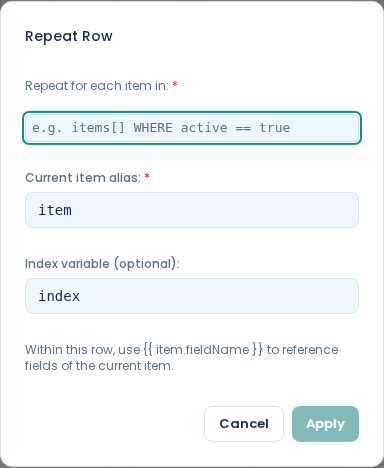
The dialog is headed Repeat Row. In Repeat for each item in:, type the path to the list in
your data: lines. Leave Current item alias: as item, or change it to something that reads
better in the template, like line. Choose Apply.
The row now shows a Repeat · lines bar so you can see it is the repeating one. Click the bar to change the settings.
Put the item's values in the row
Inside a repeating section, a variable refers to the current item, so the path starts with the alias you chose:
line.description
line.quantity
line.unitPrice
Not lines.description. The alias stands for one item out of the list.
The Insert variable dialog picks this up: with your cursor inside the repeating row it offers the fields it can see on the first item of that list in your test data.
Make a bulleted list repeat
Write the list with one bullet in it, and put the wording for a single item in that bullet. Put your cursor in it, choose Insert repeating section, and give it the path and alias as above.
The result is one list that grows. If you instead wrap the whole list in a repeating block, you get a separate one-item list per item, which looks wrong and is an easy mistake to make.
Repeat a larger block
Select the content you want repeated (a heading, some paragraphs, a table) and choose Insert repeating section. Papers wraps the selection.
With nothing selected it inserts an empty repeating block and you build inside it.
Repeat selected text
Select the words to repeat, all inside one paragraph, and choose Repeat selected text from the toolbar. Fill in the dialog as for a row. The button stays greyed out until you have a selection that sits inside a single paragraph.
The repeated text is marked with a small repeat icon in the editor. Click the icon to change the settings.
Each copy follows straight on from the one before, so put the space or comma that should separate them inside the selection.
Repeat a cell across a row
Click into the cell and choose Repeat this cell on the table toolbar, then fill in the dialog as for a row. The cell is copied across the row once per item. See tables.
Show only some of the items
Repeat for each item in: takes a filter after the list, so you can repeat over part of it:
lines[] WHERE quantity > 0
The field after WHERE is a field on each item, written without the alias.
Use the position in the list
Index variable (optional): names a variable holding the item's position, so you can number things yourself. Leave it alone unless you need it. A numbered list handles the common case without it.
Check it against real data
Put a list with at least three items in your test data and switch to Document view. One item is not enough: a repeat that is quietly not repeating looks identical to a correct one when the list has a single entry.
If nothing appears, the path in Repeat for each item in: does not match a list in your data. Check it against the Sample Data pane. A path that points at an object instead of a list produces nothing.
Stop a section repeating
Click its Repeat bar (or put your cursor in it and choose Insert repeating section again), and choose Remove repeater. The content stays; only the repetition goes.
Totals
A repeating row often needs a total under it. That is a formula rather than a variable, because it works across the whole list:
SUM(lines[].total)
The [] means "every item". See tables for where to put it.