Conditional content
A conditional section is a block of your document that only appears when the data says it should: a probation clause for new staff, a discount line for the customers who get one. One template covers both cases instead of two templates drifting apart.
Insert a conditional section
Put the cursor where the block belongs and choose Insert conditional section from the toolbar.
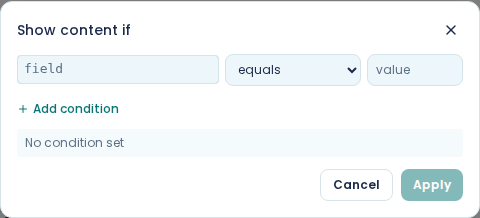
The dialog is headed Show content if. Set the condition, choose Apply, and the editor puts an empty block in the document. Type the content that should appear inside it. If you select some content first, the block wraps that content instead.
In the editor, the block always shows its content, under a Show when bar that sums up the condition. The condition is applied when the document is produced, so check it in a preview (see check it with test data). Click the bar to change the condition. Remove condition in the same dialog drops the condition and keeps the content.
Everything inside the block is governed by the condition, headings included. A conditional section holding a heading and two paragraphs takes all three away when the condition is not met.
Write the condition
A condition is three parts: the field, an operator, and a value to compare against.
The field is a path into your data, written the same way as a variable: employee.permanent,
invoice.total, probation.applies. The editor suggests fields as you type.
The operators are equals, not equals, contains, starts with, ends with, greater than, less than, greater or equal, less or equal, is empty, is not empty, is true and is false.
is true and is false take no value: use them for a field that holds yes or no. The rest compare against whatever you type in the value box.
Combine two conditions
Add condition adds a row. Once there are two rows, an AND button appears above them, next to Show if ALL of:. Choose it to switch to OR and Show if ANY of:, which is the difference between needing every row to match and needing any one of them.
Two conditions is usually the limit of what stays readable. Beyond that, ask whether the data should carry a single field that says what you actually mean.
Show or hide a few words inside a sentence
Select the words, all inside one paragraph, and choose Condition on selected text from the toolbar. Set the condition as for a section and choose Apply. The button stays greyed out until you have a selection that sits inside a single paragraph.
The words are marked with a small icon in the editor. Click the icon to change the condition.
Show a table row or a cell only when the data says so
Tables have their own conditions: Add row condition leaves out a whole row, and Add cell condition clears a cell's content while keeping the cell. Both are on the table toolbar. See tables.
A condition from an imported document
A condition that came in with an imported document opens read-only: the dialog shows the original condition text and offers only Remove condition. To change it, remove it and build a new one in its place.
Check it with test data
A condition is only as good as the data behind it. Give the template test data with the field set both ways and preview it twice: once where the section should appear, once where it should not. See preview with test data.
Getting this wrong is quiet rather than loud. A condition that never matches produces a document that reads perfectly well and is missing a clause, and nothing on screen tells you so.
What the rendered document does
The section is either included whole or dropped whole. There is no placeholder, no gap, and no blank line where it would have been.
A dropped section also drops out of a table of contents, because the contents list is built from the headings that survived.