Create a template
A template is one kind of document: an invoice, a contract, a letter. You design it once and Papers produces as many copies as you need from it.
Create a template
From Templates, choose New template. The New template dialog opens.
Fill in Name. This is what you and your colleagues will see in the list, so name it after the document rather than the occasion: "Invoice", not "July invoices".
Description is optional and worth filling in anyway. It is the only place to record what the template is for, and in six months you will want it.
Choose Create. Papers creates the template and opens the editor on an empty page.
Import a Word document
If the document already exists in Word, start from that instead of an empty page. From
Templates, choose Import Word document, pick the .docx file under Word document, and
choose Import. Papers accepts .docx files up to 25 MB. An old .doc file has to be saved as
.docx in Word first.
Your document becomes a new template. Anything Papers cannot reproduce exactly is listed in an import report when the import finishes. Choose Open in editor to start fixing it, or Back to templates to come back to it later. View import report on the template's ... menu opens the report again.
Rename a template
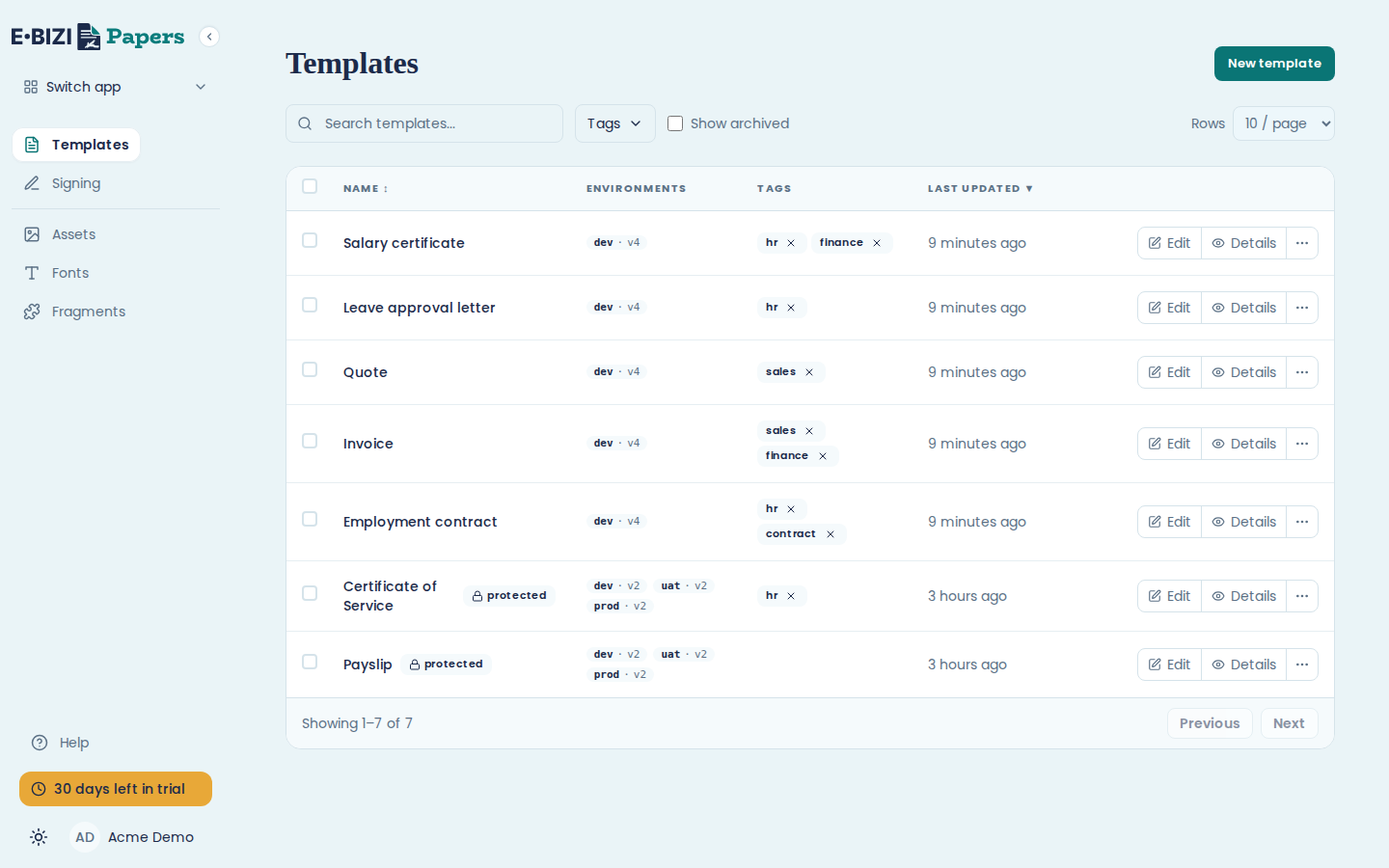
Each row in Templates has Edit and Details buttons, and a ... menu holding the rest: Rename, Add tag and Archive, plus View import report on a template you imported.
Choose Rename from that menu. You can also click the name at the top left of the editor and type over it.
Renaming also changes the template's Slug, because Papers builds the slug from the name. If your own system asks for the template by its slug, tell your developers before you rename it.
Tag templates so you can find them
Choose Add tag from the row's ... menu, type the tag and press Enter. Tags are free text, so pick a few and stick to them: hr, sales, finance.
Once tags exist, the tag filter above the list narrows it down. On five templates this is not worth doing. On fifty it is the only thing that works.
Search
The search box above the list matches on the template name. It searches as you type.
See a template's details
Choose Details on the row. This page shows the Slug (the short identifier your own systems would use to ask for this template), the Locale, when it was Created and Last updated, and its tags.
Open editor goes to the editor. Edit details lets you change the name and description without opening the editor at all. Tags are changed from the list, not here.
Use a template in Word
A template can also be used from Microsoft Word, through Papers for Word or a downloaded Word template file. Once you switch on Available in Word for it, its details page shows Download for Word. See use your stationery in Microsoft Word.
Archive a template you have stopped using
Choose Archive from the row's ... menu. The template leaves the list but nothing is destroyed. Tick Show archived above the list to see archived templates again.
Archiving cannot be undone, so read the name twice before you confirm. See find and organise templates.
Some templates are marked Protected. Those come with the product and cannot be archived, so the action is greyed out with a note saying why.
Next
Now put something in it: a tour of the editor, or go straight to placeholders for your data if you know what you are building.