Environments and promotion
Environments let a template change be tested by your developers before it reaches the documents your customers get. If nobody is calling the Papers API, you can skip this article: publish and carry on.
What the three environments are for
Every Papers company starts with three: DEV, UAT and PROD. They run in that order, and they are stages, not copies of your account. The same template exists once; each environment records which published version of it is live there.
You can add, rename and delete environments in Settings. See environments and API keys.
Two things attach to an environment. A published version sits in one, and an API key belongs to one. A key made for DEV only ever generates from the version published to DEV, which is what makes the whole arrangement useful: your test system cannot accidentally produce documents from a template your business has not approved.
Publishing puts the version in DEV
Publish in the editor creates the version and puts it in the first environment, DEV. It does not reach UAT or PROD until you promote it.
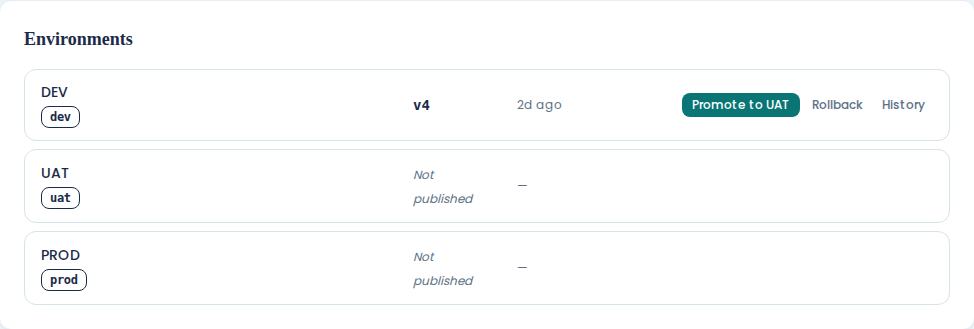
So a template with badges reading dev · v4 and nothing else has a published version that no
PROD integration can see.
See where a template stands
Open the template's Details page and look at Environments. Each environment gets a card with the version live there and how long it has been there, or Not published if the version has never reached it.
The same badges appear in the ENVIRONMENTS column of the Templates list, which is the quicker check when you are looking at several templates at once.
Promote a version to the next environment
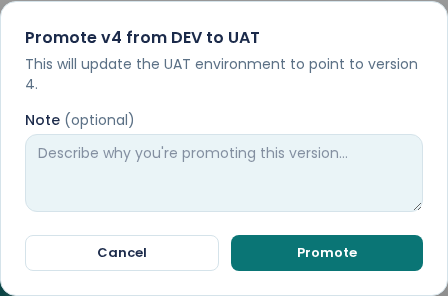
On the environment card holding the version you want to move, choose Promote to UAT (or Promote to PROD from the UAT card). The button carries the next environment's name, so it reads differently if your environments have been renamed. The dialog names the version and where it is going, takes an optional Note, and moves it when you choose Promote.
Promotion moves one step at a time, in order. There is no promote-straight-to-PROD, and that is deliberate: UAT exists so somebody looks at the document before your customers do.
The promote button only appears when the next environment has an older version or none at all. If it already has the same version or a newer one, there is nothing to promote and the card shows Rollback and History only.
Write the note
The note is optional and worth the ten seconds. It is the only thing in the history that says why the version moved, and "new banking details, approved by Thandi" reads better in November than a bare timestamp.
Roll an environment back
Rollback on an environment card puts an earlier version back in that environment. Choose the version from the list of what has been there before.
Rollback affects that environment only. Rolling PROD back to v3 leaves DEV and UAT on v4, which is what you want while you fix whatever v4 got wrong.
This is not the same as restoring a version in the editor. Restoring brings old content back into your draft to work on. Rollback changes which published version an environment serves, and touches no drafts. See versions and publishing.
Read the history
History on an environment card opens the log for that environment. Reason says what moved it (Publish, Promote or Rollback), then come From → To, Changed At, and the Note, if somebody typed one.
That log answers the question you will actually be asked, which is "when did PROD start using this wording".
Keys, environments and the API
An API key carries its environment and cannot be pointed at another one from a request. The key your integration uses decides which published version it gets.
Making a key is covered in environments and API keys.