Formatting and page layout
The formatting works the way a word processor's does. The page setup is the part worth reading, because a template that looks right on screen and wrong on paper is almost always a margin or a paper size.
Format text
The toolbar's second group sets what the text is: the style dropdown, the font, and the size. The third group sets how it looks: Bold (Ctrl+B), Italic (Ctrl+I), Underline (Ctrl+U), Strikethrough, superscript and subscript, text colour, highlight, a link, and clear formatting.
Clear formatting is the one people forget. Pasted text arrives with its old styling attached, and clearing it is faster than fighting it.
Use styles rather than manual formatting
The style dropdown offers Normal text, Title, Subtitle, and Heading 1 through Heading 6.
Use them. A heading styled as a heading is what a table of contents is built from, and text made big and bold by hand is not a heading no matter how much it looks like one.
Lay out paragraphs
The fourth toolbar group has alignment, line spacing, Lists and blocks (bullet list, ordered list, blockquote, horizontal rule), and indent.
Choose a font
The font dropdown splits into two groups. Your fonts at the top are the families your company has uploaded. Standard fonts below are the ones that come with Papers. There is a search box, which you will want once you have uploaded a few.
Which fonts come out right in a PDF
This one costs people an afternoon, so it is worth knowing up front.
Four of the standard fonts are embedded in the PDF: Inter, Roboto, Lato and Calibri. Pick one of those and the document looks the same everywhere, on every machine, forever.
Calibri itself cannot be bundled, so the PDF carries Carlito in its place. Carlito is an open font drawn to Calibri's measurements, so the text takes up the same space and your line breaks hold.
The other standard fonts (Arial, Cambria, Georgia, Times New Roman, Verdana and the rest) are not embedded. They are substituted with whatever the reader's machine has, so the spacing and the line breaks can shift. This is a licensing constraint, not a fault we are going to fix: those typefaces cannot legally be bundled into your PDFs.
So if the exact look matters, use Inter, Roboto, Lato, Calibri, or a font you have uploaded yourself. See the asset library for where uploaded fonts live.
Set the page size and margins
Open Page Setup from the top right of the editor. The dialog is titled Template Settings and opens on its Page section.
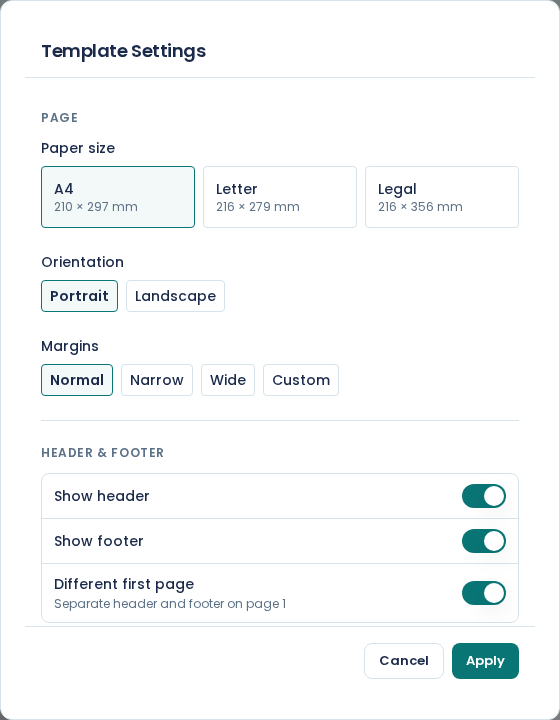
Paper size offers A4, Letter and Legal. A4 is the South African default and it is what Papers starts with. Orientation is Portrait or Landscape.
Margins offers Normal, Narrow and Wide, plus Custom when you need exact values. The presets cover almost everything. Papers rejects a negative margin, and a margin more than half the page width, so you cannot produce a document with no room for content.
Choose Apply. The page in the editor changes shape immediately, so you can see what your content does at the new size.
Set the language and currency
Also in Page Setup, under Locale & Currency. Language / Region sets how dates and numbers are formatted, and Currency sets the default currency for money.
Set these once per template and every variable formatted as currency or as a date follows. Changing the locale updates the currency to match, so set the locale first.
For a South African template that is en-ZA and ZAR. Dates then come out in the order people here
expect (2026/07/24 short, Monday, 14 September 2026 long) and money carries the rand sign:
R18,500.00.
That grouping is worth a second look if you were expecting R 18 500,00. Papers formats money in
the document using the standard en-ZA data, which uses a comma for thousands and a full stop for
cents. It is not a setting you can change per template.
The editor's Document view formats values in your browser, so on screen the same amount can
show as R 18 500,00 and a long date without the day of the week. Download the document to see
the format your reader gets.
Force a page break
Page break in the insert group pushes what follows onto a new page. Use it for a signature page you want kept whole, or before a section that should start fresh.
Do not use repeated empty paragraphs to push content down a page. It works until the content above it grows by one line.
See where the pages fall
The status bar at the bottom left shows which page your cursor is on and how many pages there are, and the editor draws the page boundaries as you scroll. Zoom out with the control at the bottom right to see the shape of the whole document.
Make the template available in Microsoft Word
Also in Page Setup, under Microsoft Word. Switch on Available in Word and choose Apply. Your staff can then pick the template in Papers for Word, and you can download it as a Word template (.dotx). See use your stationery in Microsoft Word.
Turn on a running header or footer
Also in Page Setup, under Header & Footer. See headers and footers.